
Appearance
Using the Add-in
This section describes how to use the Taurec Add-in for Excel® . It is assumed that the logon user has designer permissions.
Taurec Ribbon Groups
The Taurec ribbon is divided into different groups which are described in separate sections.

Areas
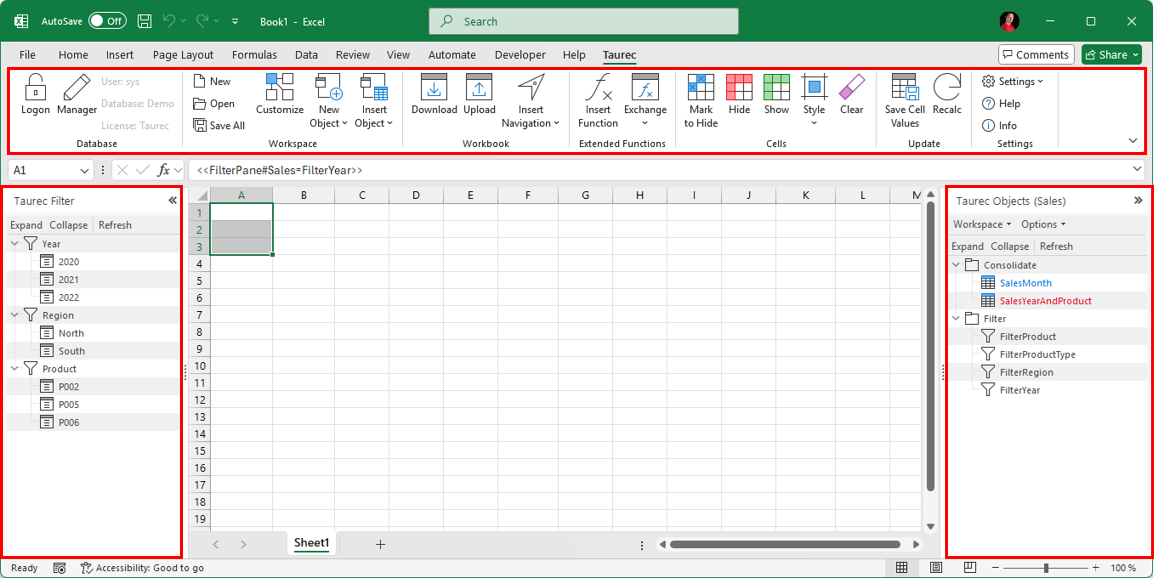
After startup three areas of the Taurec addin are visible.
Taurec Ribbon (Top)
The Taurec ribbon is shown at the top.
Taurec Filter (Left)
The Taurec Filter pane is show at the left which contains filters. The user is able to edit the filter items via a double click on an item.
The pane can be placed at the top, left, bottom or right by moving the header to the new position with drag & drop.
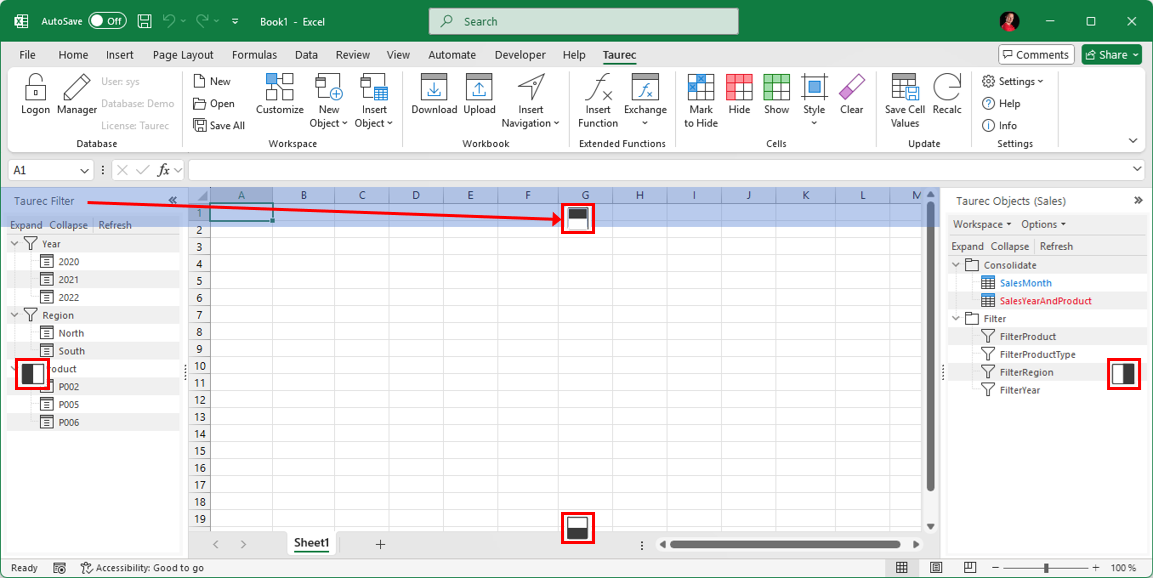
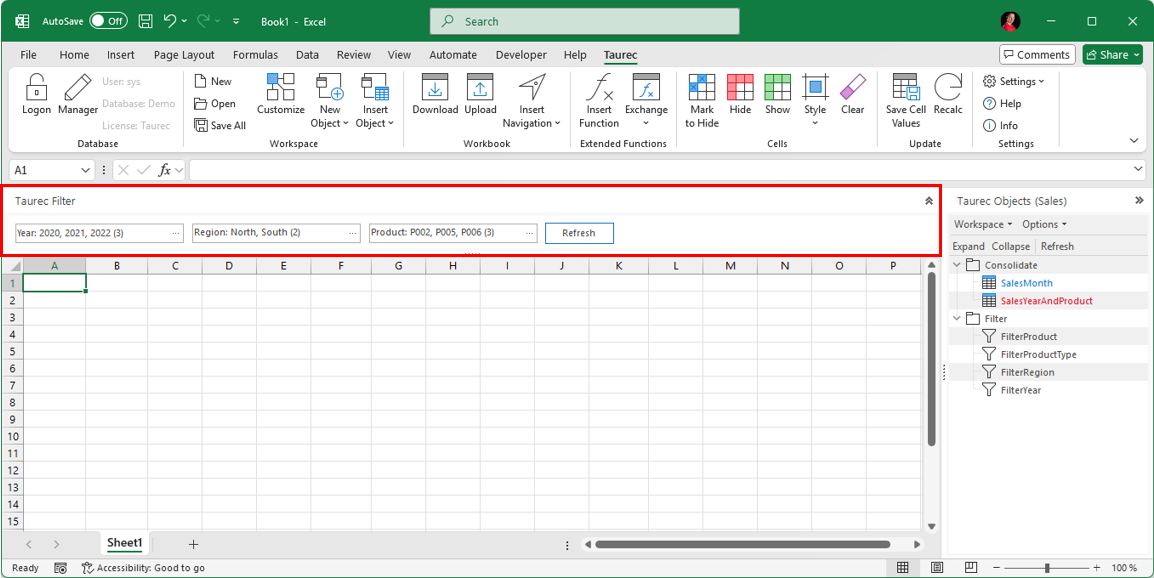
In this example the filter has been moved to the top.
Taurec Objects (Right)
The Taurec Objects pane is shown at the right. It displays the objects in the selected workspace. With drag & drop the pane can be moved to the left. A double click on an object inserts the corresponding object-tag in the selected cell.
The Workspace menu in the pane is used to change between the loaded workspaces.
